
Record without a laptop
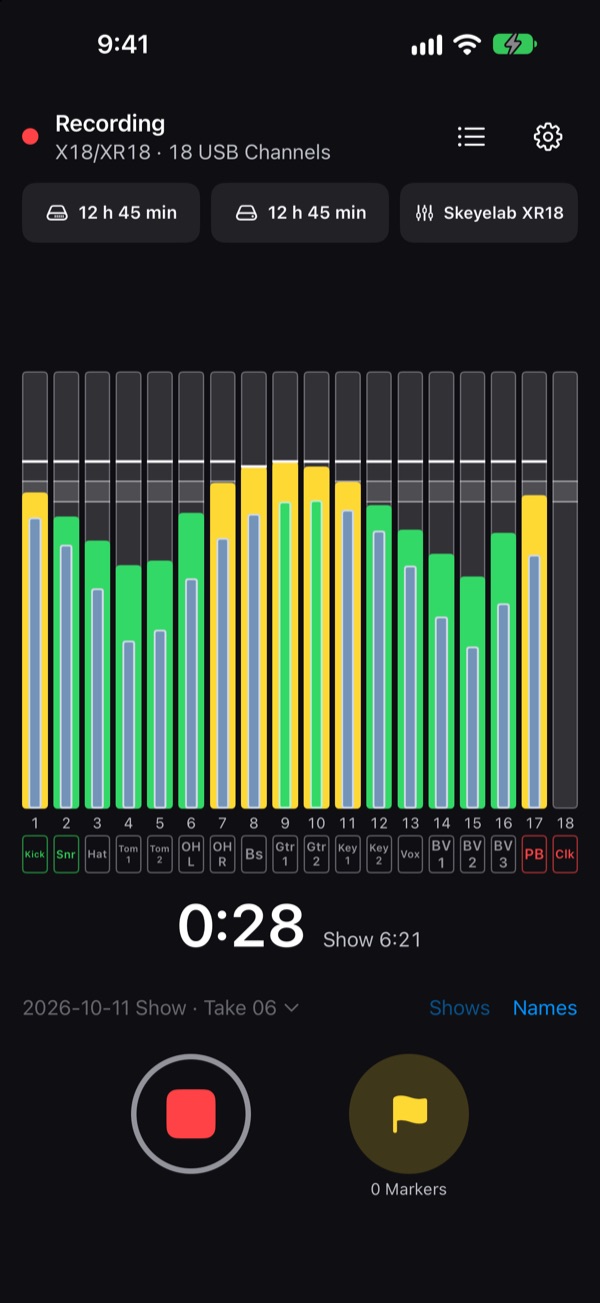
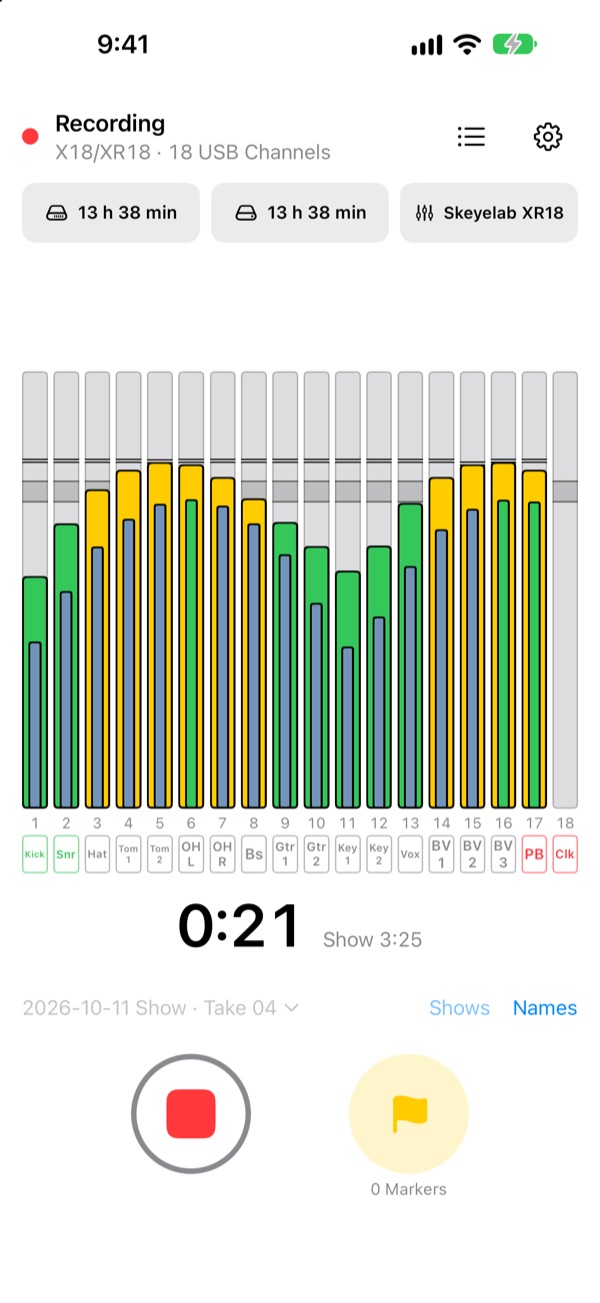
Recording an XR18 usually means a laptop on the stage box and a DAW running all night. With ShowRecorder the phone or tablet you already carry does the job, and the mixer's own Wi-Fi gives the files their names. When the show ends, one file per channel is ready for your DAW.
What you get
- All 18 USB Channels: the 16 inputs and the aux line in, recorded in step with each other at the mixer's sample rate.
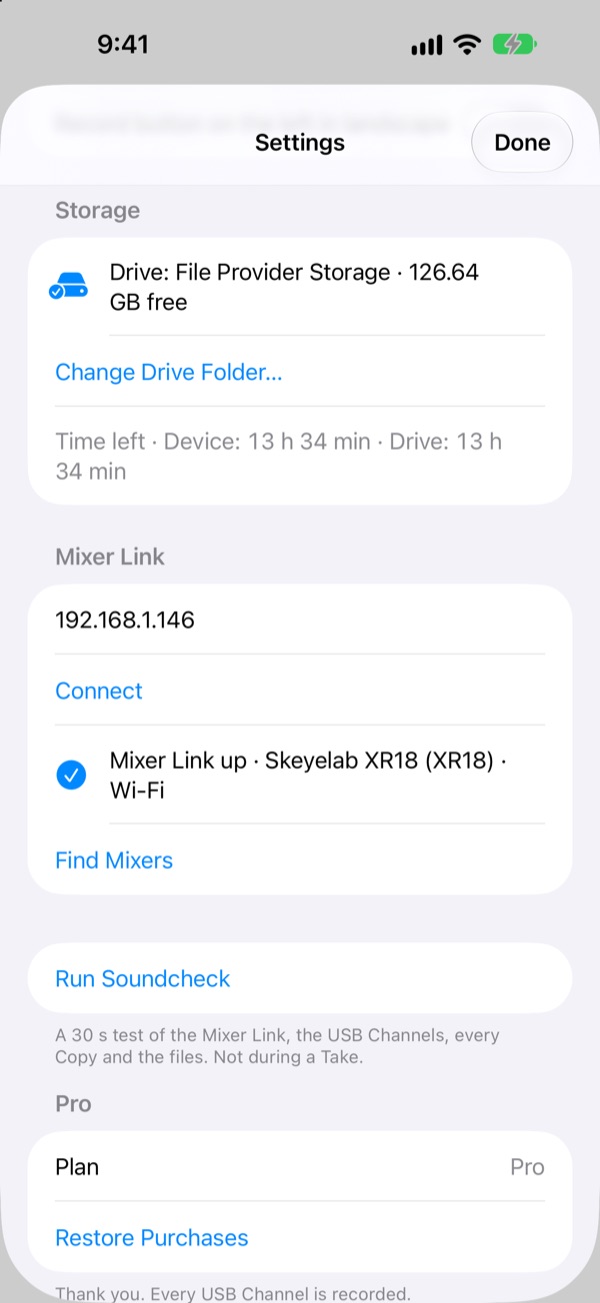
- Files named from the mixer. Over the Mixer Link, ShowRecorder reads each channel's name and color from the XR18 or MR18 and picks up a rename on the mixer within a second or two: on screen straight away, and with Pro in the files from the next recording.
- A second copy as you record with Pro, on a USB drive through a hub, so one failure doesn't lose the show.
- Markers you drop during the set, and the seconds before you press record, and with Pro a report of the show and a Reaper project.
What you need
- A Behringer X Air XR18 or Midas MR18. The XR12 and XR16 send no multichannel USB audio, so they can't be multitracked this way.
- A USB-C iPhone (iPhone 15 or later) on iOS 26, or a USB-C iPad on iPadOS 26, and a USB-B to USB-C cable to the mixer. For a long show, a powered USB-C hub between them keeps it charged. A Mac version is in testing (macOS 26).
- For names and colors: your iPhone or iPad on the mixer's Wi-Fi, or on the network the mixer is connected to. Recording itself needs only the USB cable.
Set it up
- Connect the mixer's USB port to your iPhone or iPad. Settings shows 18 USB Channels.
- Join the mixer's Wi-Fi.
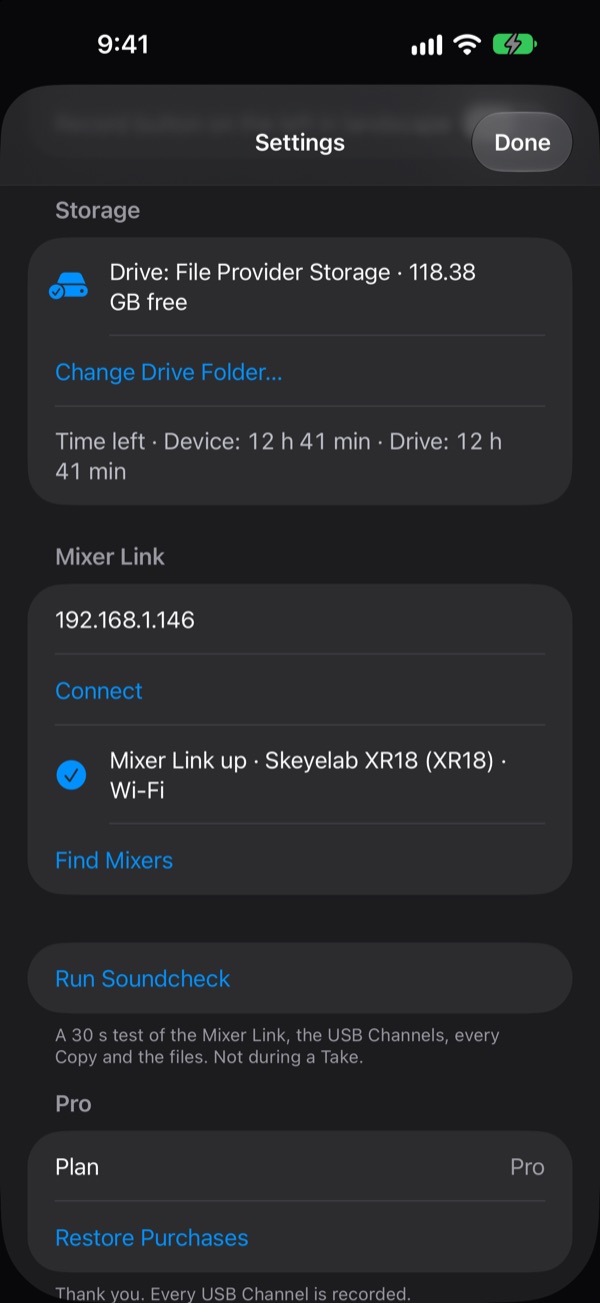
- Open Settings, then Mixer Link, and tap Find Mixers. Tap your mixer. The meters take the mixer's channel names and colors.
- Press record.
Step by step, with what to check: USB cable and setup and Mixer Link.
Choose what USB records
ShowRecorder records the mixer's USB sends. To choose the source of a USB Channel in X AIR Edit:
- Open the Routing menu with the up/down arrow at the top of the main view. The Behringer X AIR User Manual, section 6.13 identifies this control and the Routing screen.
- On the Inputs/USB routing grid, select the USB send you want to change. The manual says you can move the orange routing dot in the grid or choose a USB send and input from the folder menu. Check which source is assigned before changing it. (X AIR User Manual, section 6.13)
- Make a short test recording and listen to the corresponding file. Repeat for each USB Channel you need. The manual describes a revert button for Inputs/USB routing if you need to undo routing changes. (X AIR User Manual, section 6.13)
The manual does not clearly identify the USB-send tap choices or their factory default. Check the label shown by your mixer before choosing one. What the mixer sends over USB explains the tradeoffs; its tap-point names are general, not a claim about the XR18 menu.
18 channels at 48 kHz take about 9.3 GB per hour, on the iPhone or iPad and again on the drive if you use one. The record screen shows the time left.
Free, Trial and Pro
ShowRecorder is free to download, and Free records all 18 USB Channels to your iPhone or iPad, with generic names on the files and up to 3 Markers per recording. With the Mixer Link, the meters show the mixer's names as you record. Pro adds the names and colors from the mixer on the files, a second copy on a USB drive, unlimited Markers, a report, a Reaper project, 96 kHz, Templates and choosing which USB Channels record. Pro is a one-time $4.99 purchase at its launch price, with no subscription. Start the 14-day Trial in Settings › Pro to try the Pro features.
Where to get it
ShowRecorder 1.0 for iPhone and iPad, with the XR18 and MR18, is on the App Store. The public beta is open now with what comes next, such as files named after what the mixer routes to each USB Channel when you've re-patched it. See In the beta to join.
Tell us how it goes
Questions, or a mixer that does something unexpected? Write to us at the address on the Support page. Other mixers: see Supported mixers, and the Behringer X32 and Midas M32 page.